Editing translations
How editors find, change and review messages in the App Translations section, and who can open it.
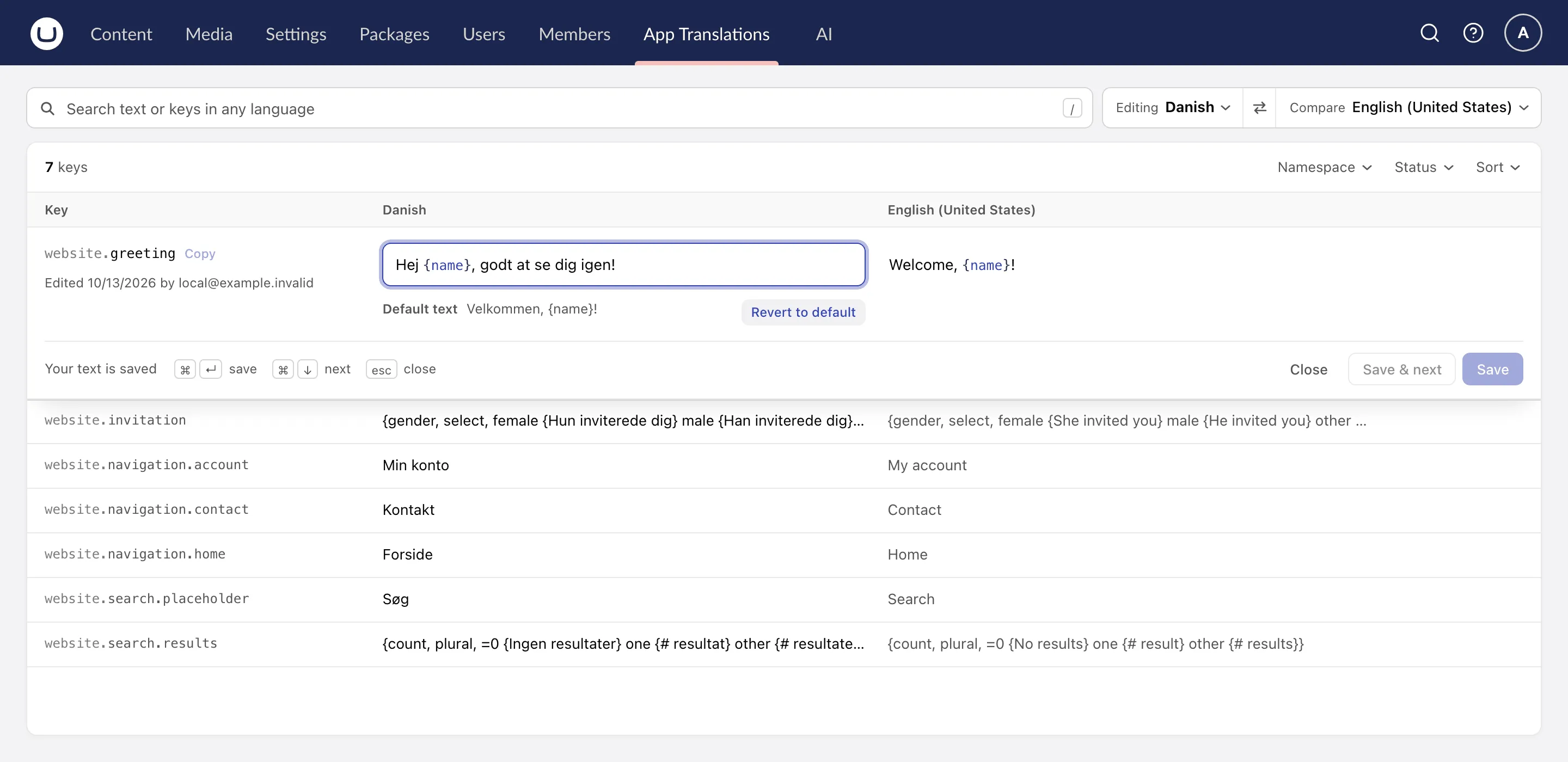
The App Translations section lists every message, one row per key. Choose the language you are editing and, if you like, a language to compare against. The ⇄ button between them swaps the two. The editor remembers the pair for the rest of the browser session.
Finding a message
- Search finds text in any language, and keys.
- Filters narrow the list by namespace and by status. The statuses are not written, custom text, default text, default changed, and no longer used.
Changing a message
- Click a row to edit it in place. The field highlights placeholders, and a message with plurals or choices shows an example of each case under the field.
- Save saves the row. Save & next saves it and opens the next one, for working down a list. The bottom of the open row lists the keyboard shortcuts.
- Opening another row or closing this one keeps your unsaved text. The row shows it, marked as unsaved, with its own Save and Discard. Save all at the top saves every unsaved row at once. Unsaved text survives a visit to another section or a reload.
- Revert to default removes the custom text and returns to what the application ships.
- Default changed marks custom text whose application default has changed since someone wrote it, so you can check it still fits.
Each message shows who last changed it, and when. Anyone with access to the App Translations section can edit. Administrators manage sources and the AI settings.
Languages your application does not ship
A site can offer a language its application has no files for. Add the language in Settings > Languages, and leave it unticked on the source, since the source does not supply it. The language then appears in the editor with every message empty, and editors write the text from scratch. Each message keeps the placeholders and plural rules of the languages the application does ship, so the editor checks the new text the same way.
The delivery endpoints serve that text as the whole message, because the application has nothing to merge it over. If the application later ships the language, tick it on the source: the next sync fills in its default text, and keeps what the editors wrote as custom text.
Who can open the section
The package installs its own App Translations section and opens it to the user groups that can open Umbraco’s Translation section, which on a new site are Administrators and Translators. To let more people edit, add the section to their user group in Users > User groups.
Umbraco’s Translation section
Umbraco’s own Translation section holds only the Dictionary. On a site without Dictionary items it is a second, empty translation section next to App Translations, so the package hides it while the Dictionary is empty. As soon as the site has a Dictionary item, the section shows again.
To show it on a site without Dictionary items, for example to start adding some, turn off Hide while the Dictionary is empty in Settings > App translations. The section comes back at once.
Hiding it changes nothing in the user groups: the package leaves it out of the backoffice, so uninstalling the package brings it back.